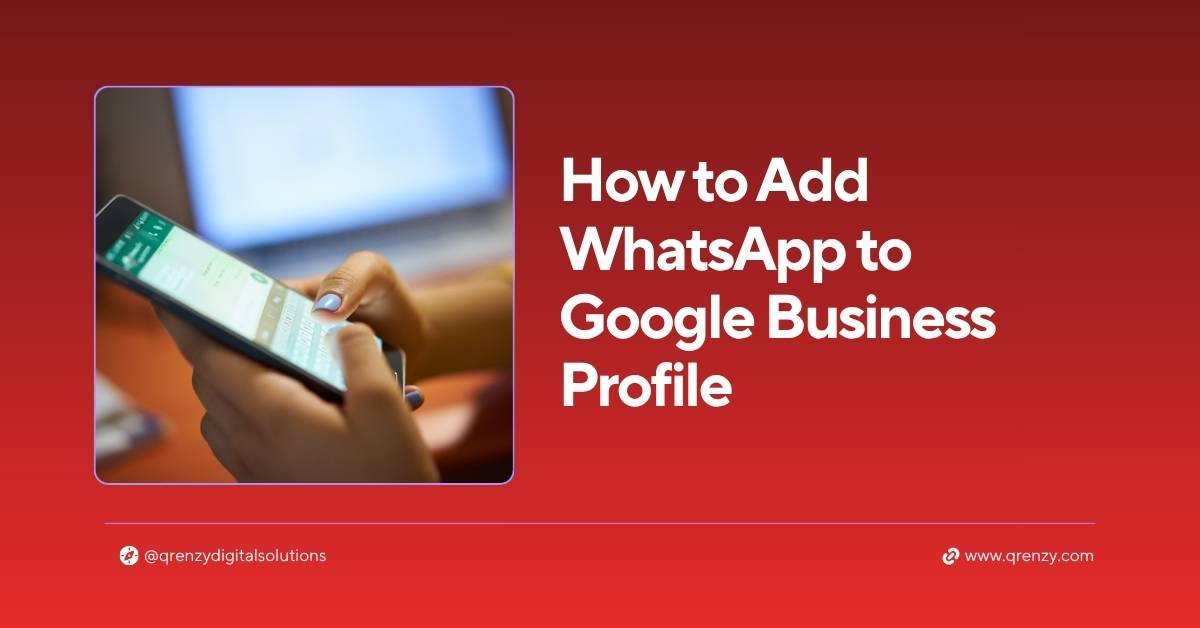
If you want to add WhatsApp to Google Business Profile, you’re making one of the smartest moves for your local business in 2026 — especially if your customers are in India, the Gulf or any WhatsApp-dominant market.
Here’s why this matters: WhatsApp has over 2.9 billion active users worldwide. In India alone, it’s the default way people communicate. When a potential customer finds your business on Google Maps and sees a WhatsApp button right there — they don’t call, they don’t fill a form. They tap and chat. Instantly.
I’ve set this up for dozens of businesses across India and the Gulf. In this guide, I’ll show you the exact setup steps, how to fix every common problem, and — critically — the advanced tips that most guides completely miss.
Why Adding WhatsApp to Google Business Profile Is a Game-Changer
Before we get into how to add WhatsApp to Google Business Profile, let’s understand what you’re actually gaining.
When someone finds your business on Google Maps, they see your contact options — phone, website, directions. Adding WhatsApp gives them a fourth option that’s faster and more personal than anything else.
Here’s what changes when you enable it:
- Higher engagement — customers prefer chatting over calling, especially younger audiences
- Faster response — WhatsApp messages get read within minutes vs emails that sit for hours
- Better lead capture — every conversation is a contact you can follow up with
- Local SEO boost — Google tracks engagement on your GBP. More interactions = stronger ranking signals
- Review building machine — after a successful WhatsApp conversation, one message asking for a review converts at an incredibly high rate
For businesses in India and the Gulf — where WhatsApp is essentially the national communication app — not having this button is leaving money on the table every single day.
Requirements Before You Add WhatsApp to Google Business Profile
Before starting the setup, make sure you have these in place:
| Requirement | Details |
|---|---|
| Verified GBP | Your profile must be verified and active |
| WhatsApp account | Personal WhatsApp or WhatsApp Business (Business recommended) |
| Phone number | In international format — e.g. +91 9905X XXXXX |
| Supported category | Some business categories don’t support messaging |
| Profile access | Owner or manager role required |
WhatsApp Personal vs WhatsApp Business — which should you use?
Always use WhatsApp Business. Here’s why:
- Auto-reply messages — so no lead is lost even when you’re offline
- Quick replies — save template responses for common questions
- Business profile — shows your hours, address and website in the chat
- Labels — organise conversations by lead stage
- Catalogue — showcase your products/services directly in chat
WhatsApp Business is free to download and takes 10 minutes to set up. It’s a no-brainer upgrade from personal WhatsApp.
How to Add WhatsApp to Google Business Profile — Step by Step
Here’s exactly how to add WhatsApp to Google Business Profile in 2026:
Step 1 — Sign in to Google Business Profile using the account that manages your listing
Step 2 — Search your business name in Google Search to open the management panel
Step 3 — Click “Edit profile” → go to “Contact” or “Business information”
Step 4 — Find the “Chat” or “Messaging” section in the contact options
Step 5 — Select WhatsApp as your preferred messaging platform
Step 6 — Enter your WhatsApp number in international format:
✅ Correct: +919905XXXXXX
❌ Wrong: 09905XXXXXX or 9905 XXX XXX
Step 7 — Save changes and wait 5–10 minutes for Google to process
Step 8 — Search your business on Google Maps and confirm the WhatsApp button appears
Step 9 — Tap the button to verify it opens a WhatsApp conversation with your number
Done! Your customers can now reach you directly from Google Maps via WhatsApp. ✅
Set Up Your Pre-Filled WhatsApp Welcome Message
This is a powerful tip that most guides completely miss — and it can dramatically increase your lead conversion rate.
When customers click your WhatsApp button from GBP, you can pre-fill the message they send you. This means they arrive with context — you know they found you on Google, and they don’t have to type anything.
How to create a pre-filled WhatsApp link:
https://wa.me/[your number]?text=[your message]Ready-to-use templates:
For a general enquiry:
https://wa.me/919905XXXXXX?text=Hi,%20I%20found%20you%20on%20Google%20Maps%20and%20would%20like%20to%20know%20more%20about%20your%20services.For a restaurant:
https://wa.me/919905XXXXXX?text=Hi,%20I%20found%20you%20on%20Google%20and%20would%20like%20to%20make%20a%20reservation.For a service business:
https://wa.me/919905XXXXXX?text=Hi,%20I%20need%20a%20quote%20for%20your%20services.%20I%20found%20you%20on%20Google%20Maps.Replace 919905XXXXXX with your number (country code + number, no + or spaces).
Set Up WhatsApp Business Auto-Replies (Don’t Skip This)
Here’s the problem with adding WhatsApp to Google Business Profile without auto-replies — customers message you at 11pm, get no response, and contact your competitor by morning.
Set up these 3 auto-replies in WhatsApp Business:
1. Away Message (when you’re offline)
“Thanks for reaching out! We’re currently closed but will reply first thing in the morning. Our working hours are Mon–Sat, 9am–6pm. For urgent enquiries call +91 XXXXXX.”
2. Greeting Message (first message from new contact)
“Hi! Thanks for contacting us via Google. We’ll get back to you within the hour. Meanwhile, visit our website for more info: www.qrenzy.com“
3. Quick Replies (save these for common questions)
/price→ “Our pricing depends on scope. Let me know your requirements and I’ll send a custom quote.”/hours→ “We’re open Mon–Sat, 9am to 6pm IST.”/location→ “We’re based in Thrissur, Kerala. Here’s our Google Maps link: [link]”
These simple setups mean zero leads fall through the cracks — even when you’re sleeping.
Use WhatsApp to Build Google Reviews on Autopilot
This is the strategy that helped our crane service client build 203 five-star reviews — and it all flows through WhatsApp.
After every completed job or sale, send this message:
“Hi [Name], thank you for choosing us! We hope you’re happy with our service. If you have a moment, we’d really appreciate a Google review — it helps us a lot and only takes 30 seconds. Here’s the link: [your Google review link]”
Why WhatsApp works better than email for review requests:
- WhatsApp messages have a 98% open rate vs ~20% for email
- People respond to WhatsApp 4× faster than email
- It feels personal — not automated
- One tap takes them straight to your review page
This single system consistently builds reviews faster than any other method we’ve seen.
Common Fixes — WhatsApp Not Showing on GBP
Problem 1: WhatsApp option not visible in GBP settings
- ✅ Check your business category supports messaging
- ✅ Switch to editing from Google Search — not the old GBP dashboard
- ✅ Try from mobile — some options only appear in the mobile interface
- ✅ Make sure your profile is fully verified and not under review
Problem 2: WhatsApp button appears but doesn’t work
- ✅ Verify your number format — must be international format, no spaces
- ✅ Confirm the number is active on WhatsApp Business
- ✅ Test in incognito mode — browser extensions sometimes block wa.me links
- ✅ Remove and re-add the number, then wait 10 minutes
Problem 3: Button works on mobile but not desktop
- ✅ On desktop, WhatsApp Web must be open and logged in
- ✅ This is normal behaviour — wa.me links open the app on mobile and WhatsApp Web on desktop
Best Practices After You Add WhatsApp to Google Business Profile
Once you’ve added WhatsApp to Google Business Profile, here’s how to get maximum results:
- Respond within 1 hour during business hours — Google tracks response time
- Never ignore a message — unanswered chats hurt your GBP engagement signals
- Save all contacts — every WhatsApp enquiry is a potential long-term client
- Send follow-ups — if a lead goes quiet, a polite follow-up 48 hours later often converts
- Use WhatsApp Status — post daily updates that your business contacts can see
- Keep your WhatsApp Business profile complete — photo, description, hours, website
FAQs — Add WhatsApp to Google Business Profile
Is adding WhatsApp to Google Business Profile free?
Yes — completely free. Both Google Business Profile and WhatsApp Business are free tools. No subscription required.
Does WhatsApp on GBP help with local SEO rankings?
Yes — indirectly. More customer interactions through your GBP (messages, clicks, calls) are engagement signals that Google uses in local ranking on Google Maps. More engagement = stronger ranking signals.
Can I use a personal WhatsApp number on GBP?
Technically yes, but WhatsApp Business is strongly recommended for the auto-reply, catalogue and quick reply features that turn casual enquiries into leads.
What if my business category doesn’t support WhatsApp messaging?
Use the regular Google Business Profile messaging feature as an alternative, and add your WhatsApp number in your business description and posts so customers can still reach you.
How do I get my Google review link to share on WhatsApp?
Go to your GBP dashboard → click “Get more reviews” → copy the short review link. Share it via WhatsApp after every completed job.
Start Getting More Leads From Google Maps Today
Adding WhatsApp to Google Business Profile takes less than 10 minutes — but the impact is immediate. Every customer who finds you on Google now has a frictionless, one-tap way to start a conversation.
Combined with a complete Google Business Profile optimization strategy, this single addition can noticeably increase your weekly enquiries without spending a rupee on ads.
Need help setting up your complete local SEO presence? Start with a free SEO audit from Qrenzy.

Leave a Comment